> ## Documentation Index
> Fetch the complete documentation index at: https://docs.markapidown.net/llms.txt
> Use this file to discover all available pages before exploring further.
# Browser API Runner
> Use the Reqbook browser UI to browse, execute, edit, import, and connect markdown API specs in a local workspace.
# Browser UI for markdown API specs.
`rqb serve` starts a local browser workspace over the markdown files in `api-docs/`. It is designed to sit beside your editor and coding agent: agents can write files, you can inspect and run them visually, and everything stays in sync through the filesystem.
```bash theme={null}
rqb serve
# Preview: http://127.0.0.1:8080
```
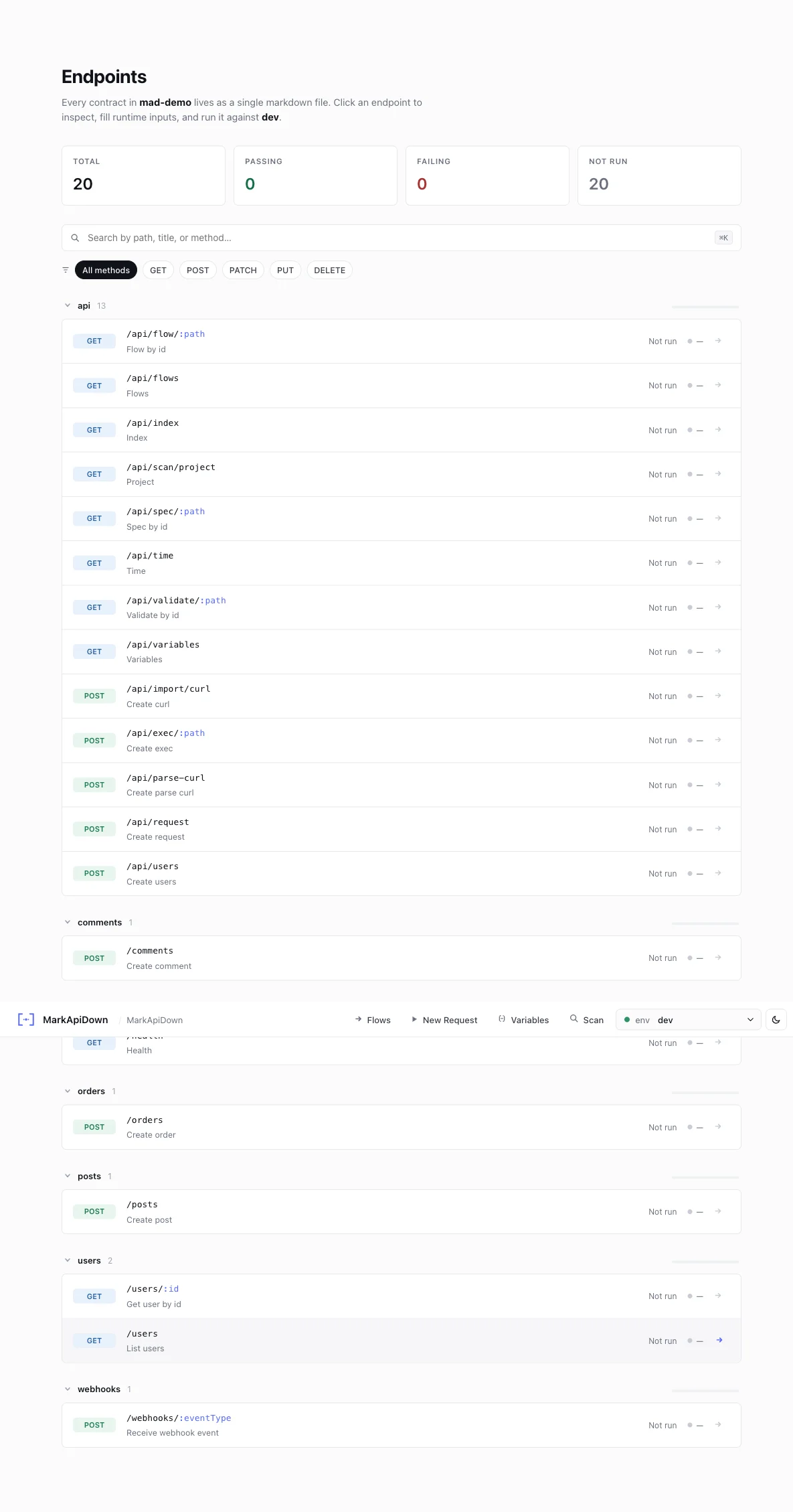 Reqbook binds to `127.0.0.1` by default. Use `--host=0.0.0.0` only when you intentionally want to share the preview on your local network.
***
## Why use the UI?
The CLI is great for CI and automation. The UI is better when you are actively designing, debugging, or reviewing specs.
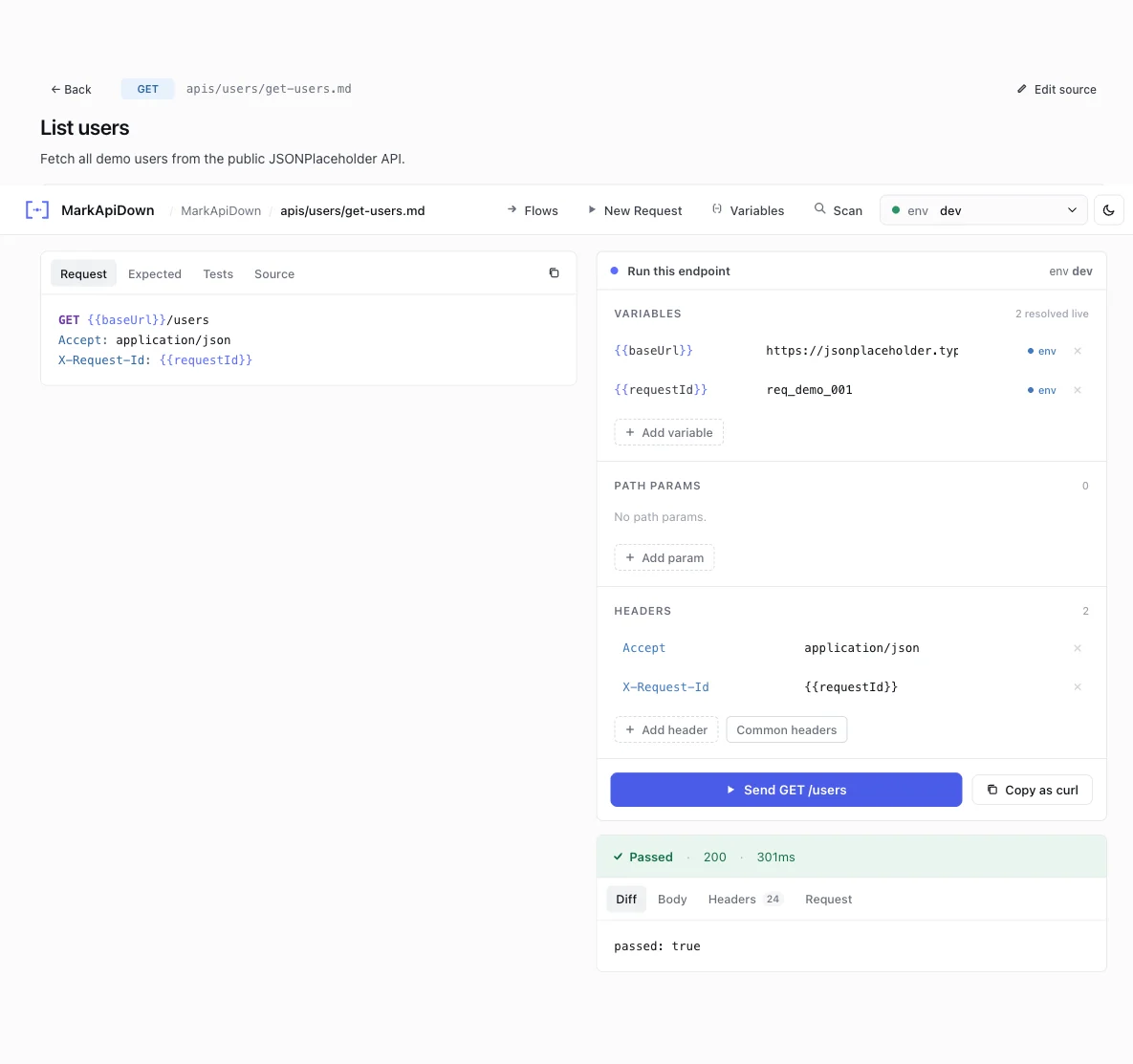
Add path params, variables, headers, and body overrides for one execution without changing the markdown file.
Inspect formatted response body, headers, raw output, duration, and diff against the expected response.
Switch to edit mode when you want to persist a spec change. Save writes the markdown file back to disk.
Design workflows visually by connecting endpoint blocks, captures, and injections. The result is saved as `api-docs/flows/*.md`.
Paste a cURL command from DevTools and generate a Reqbook endpoint spec.
Keep the UI open while your agent edits specs. Review and run the changed files immediately.
***
Reqbook binds to `127.0.0.1` by default. Use `--host=0.0.0.0` only when you intentionally want to share the preview on your local network.
***
## Why use the UI?
The CLI is great for CI and automation. The UI is better when you are actively designing, debugging, or reviewing specs.
Add path params, variables, headers, and body overrides for one execution without changing the markdown file.
Inspect formatted response body, headers, raw output, duration, and diff against the expected response.
Switch to edit mode when you want to persist a spec change. Save writes the markdown file back to disk.
Design workflows visually by connecting endpoint blocks, captures, and injections. The result is saved as `api-docs/flows/*.md`.
Paste a cURL command from DevTools and generate a Reqbook endpoint spec.
Keep the UI open while your agent edits specs. Review and run the changed files immediately.
***
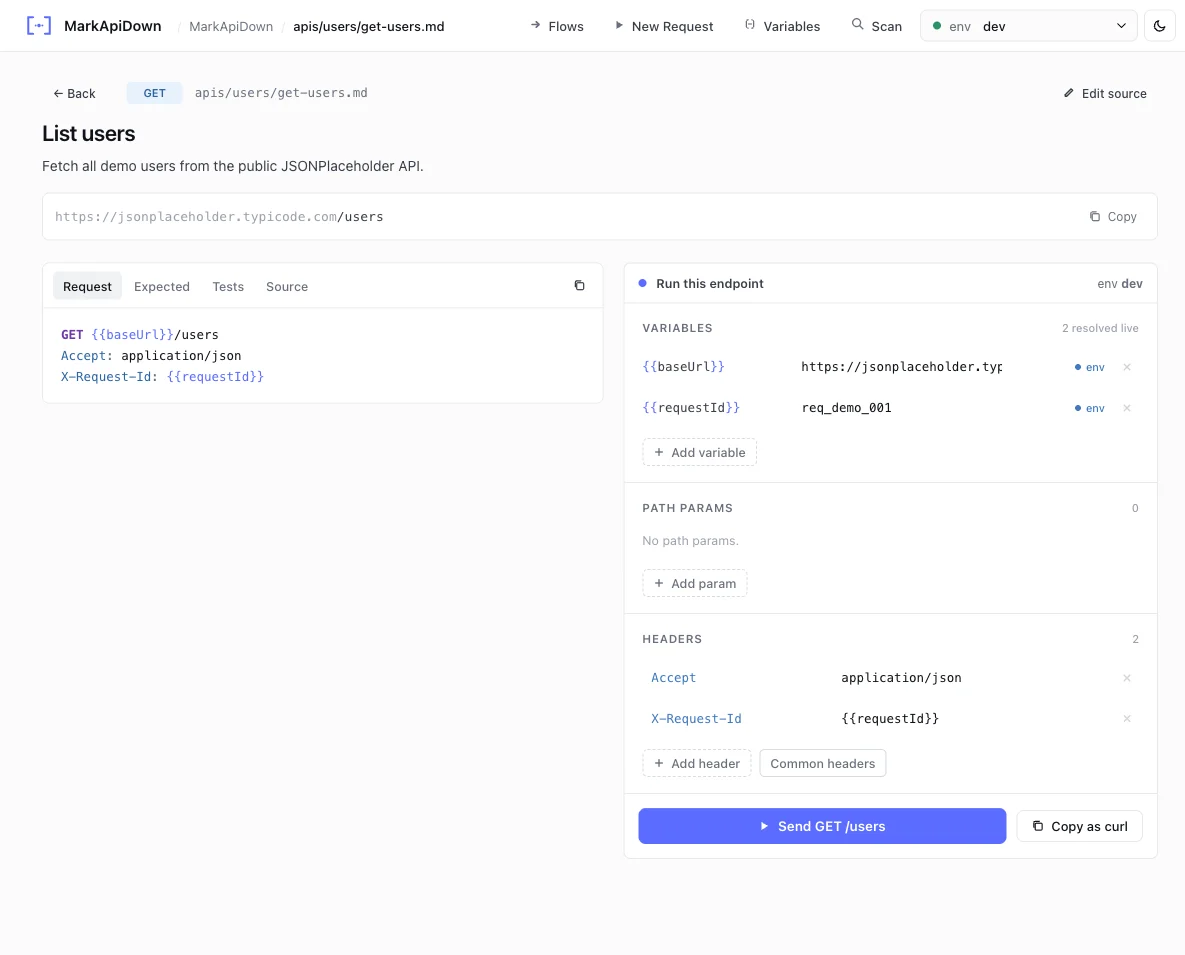 After clicking **Send**, the response panel shows status, duration, diff against the expected response, body, and headers.
 ## Request tweaks do not rewrite markdown
The request builder is intentionally temporary:
| UI control | Used for current run | Written to markdown automatically |
| ------------------ | -------------------: | --------------------------------: |
| Path params | yes | no |
| Variable overrides | yes | no |
| Extra headers | yes | no |
| Body override | yes | no |
| Edit mode save | yes | yes |
This lets you try an ID, token, header, or body shape without accidentally modifying the canonical spec. When a runtime tweak should become permanent, switch to edit mode and save the markdown.
***
## Flow canvas
## Request tweaks do not rewrite markdown
The request builder is intentionally temporary:
| UI control | Used for current run | Written to markdown automatically |
| ------------------ | -------------------: | --------------------------------: |
| Path params | yes | no |
| Variable overrides | yes | no |
| Extra headers | yes | no |
| Body override | yes | no |
| Edit mode save | yes | yes |
This lets you try an ID, token, header, or body shape without accidentally modifying the canonical spec. When a runtime tweak should become permanent, switch to edit mode and save the markdown.
***
## Flow canvas
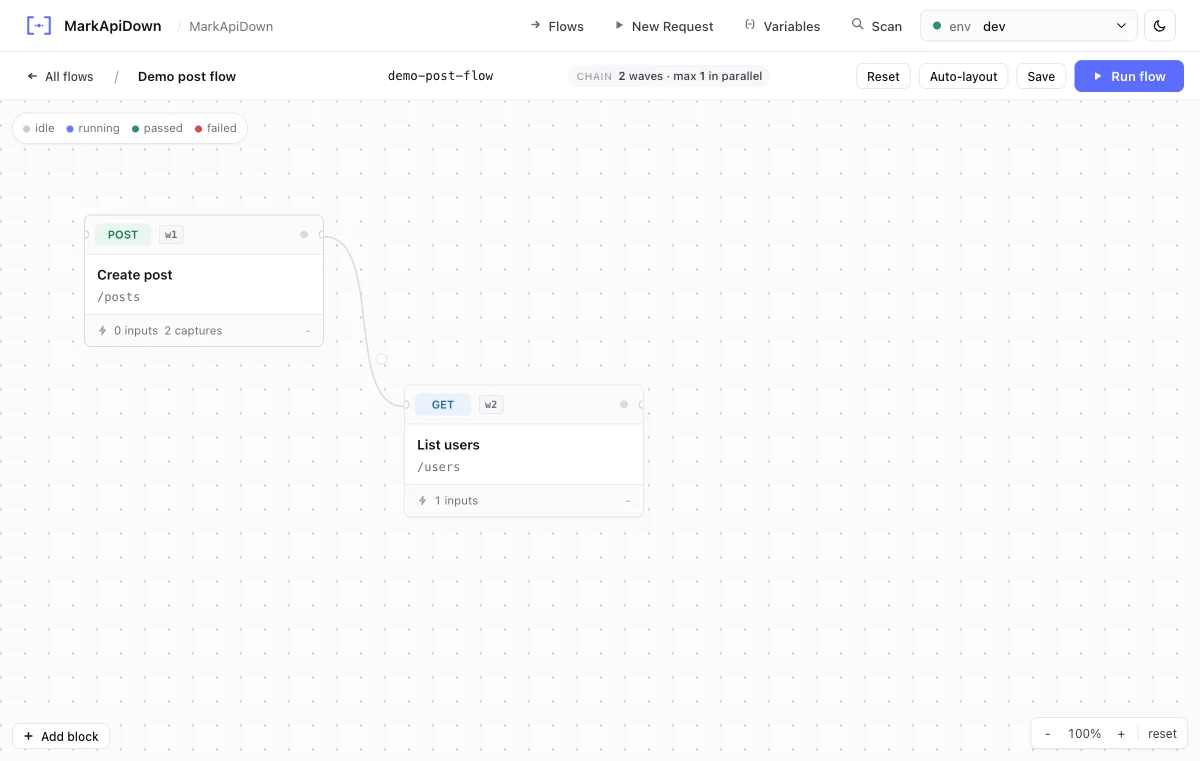 The flow canvas is the UI surface for `api-docs/flows/`.
Use it to:
* add endpoint nodes,
* connect one endpoint result to another endpoint input,
* capture values such as `response.body.id` or `response.body[0].id`,
* inject captured variables into downstream nodes,
* save the workflow as markdown.
The saved flow can then be run from either surface:
```bash theme={null}
rqb flow api-docs/flows/checkout.md --env=dev
```
or from the browser UI with the Run flow action.
***
## Environment and variables
The UI reads `api-docs/_shared/env.md` for local non-secret environment values. If that file is missing, the Variables drawer starts from `api-docs/_shared/env.template.md` and lets you create the local file:
````markdown filename="api-docs/_shared/env.template.md" theme={null}
## dev
```yaml
baseUrl: https://jsonplaceholder.typicode.com
postId: 1
```
````
Use `.env.local` or `RQB_*` for secrets. Reqbook masks auth values in UI responses and reports.
***
## Common workflow with an agent
Ask your agent to add endpoint specs or scan the project for missing routes.
Open `rqb serve` and inspect the new files in the sidebar.
Fill runtime-only params and headers, click Run, and inspect the response.
If the spec needs correction, use edit mode or ask the agent to update the markdown and validate again.
***
## Mock mode
Start the preview with `--mock` when the real backend is unavailable during frontend development, on an airplane, or before the API exists:
```bash theme={null}
rqb serve --mock
```
In mock mode:
* Clicking **Send** returns the `## Expected response` recorded in the spec file. No HTTP request is made.
* A purple **MOCK** badge appears on every response card so you always know you are looking at recorded data, not a live response.
* A **mock** chip appears in the top navigation bar while mock mode is active.
* Path parameters such as `/users/:id` are matched automatically any ID value returns the same recorded body.
Mock mode reads the same `## Expected response` blocks that `rqb mock` uses on the standalone mock server. Both features share the same source of truth.
If your specs have empty `## Expected response` blocks (stub `{}`), run `/rqb enrich` to enrich them with real field names, or execute against a live server once and copy the response body into the spec manually.
### Mock mode vs standalone mock server
| | `rqb serve --mock` | `rqb mock` |
| ------------------ | --------------------------------- | -------------------------------------- |
| Use case | Interactive review in the browser | Frontend app points to a mock base URL |
| Backend traffic | None | None |
| Port | Same as the preview (8080) | Separate port (4001 by default) |
| Latency simulation | No | Yes (`--latency`) |
***
## Server flags
```bash theme={null}
rqb serve --port=9000 --env=staging
rqb serve --mock
rqb serve /path/to/other-project
```
| Flag | Description |
| -------- | --------------------------------------------------------------- |
| `--port` | Local preview port. |
| `--host` | Host to bind. Defaults to `127.0.0.1`. |
| `--env` | Environment selected from `_shared/env.md`. |
| `--mock` | Return recorded responses instead of making real HTTP requests. |
| `[path]` | Project directory containing `api-docs/`. |
The flow canvas is the UI surface for `api-docs/flows/`.
Use it to:
* add endpoint nodes,
* connect one endpoint result to another endpoint input,
* capture values such as `response.body.id` or `response.body[0].id`,
* inject captured variables into downstream nodes,
* save the workflow as markdown.
The saved flow can then be run from either surface:
```bash theme={null}
rqb flow api-docs/flows/checkout.md --env=dev
```
or from the browser UI with the Run flow action.
***
## Environment and variables
The UI reads `api-docs/_shared/env.md` for local non-secret environment values. If that file is missing, the Variables drawer starts from `api-docs/_shared/env.template.md` and lets you create the local file:
````markdown filename="api-docs/_shared/env.template.md" theme={null}
## dev
```yaml
baseUrl: https://jsonplaceholder.typicode.com
postId: 1
```
````
Use `.env.local` or `RQB_*` for secrets. Reqbook masks auth values in UI responses and reports.
***
## Common workflow with an agent
Ask your agent to add endpoint specs or scan the project for missing routes.
Open `rqb serve` and inspect the new files in the sidebar.
Fill runtime-only params and headers, click Run, and inspect the response.
If the spec needs correction, use edit mode or ask the agent to update the markdown and validate again.
***
## Mock mode
Start the preview with `--mock` when the real backend is unavailable during frontend development, on an airplane, or before the API exists:
```bash theme={null}
rqb serve --mock
```
In mock mode:
* Clicking **Send** returns the `## Expected response` recorded in the spec file. No HTTP request is made.
* A purple **MOCK** badge appears on every response card so you always know you are looking at recorded data, not a live response.
* A **mock** chip appears in the top navigation bar while mock mode is active.
* Path parameters such as `/users/:id` are matched automatically any ID value returns the same recorded body.
Mock mode reads the same `## Expected response` blocks that `rqb mock` uses on the standalone mock server. Both features share the same source of truth.
If your specs have empty `## Expected response` blocks (stub `{}`), run `/rqb enrich` to enrich them with real field names, or execute against a live server once and copy the response body into the spec manually.
### Mock mode vs standalone mock server
| | `rqb serve --mock` | `rqb mock` |
| ------------------ | --------------------------------- | -------------------------------------- |
| Use case | Interactive review in the browser | Frontend app points to a mock base URL |
| Backend traffic | None | None |
| Port | Same as the preview (8080) | Separate port (4001 by default) |
| Latency simulation | No | Yes (`--latency`) |
***
## Server flags
```bash theme={null}
rqb serve --port=9000 --env=staging
rqb serve --mock
rqb serve /path/to/other-project
```
| Flag | Description |
| -------- | --------------------------------------------------------------- |
| `--port` | Local preview port. |
| `--host` | Host to bind. Defaults to `127.0.0.1`. |
| `--env` | Environment selected from `_shared/env.md`. |
| `--mock` | Return recorded responses instead of making real HTTP requests. |
| `[path]` | Project directory containing `api-docs/`. |